
CONNECT HELPCENTER · STORE SETTINGS AND APPEARANCE
Store details and contact information
Accurate store details help customers identify the seller and find the appropriate contact. Before publishing, separate public information from internal contacts and notification recipients.
Changing a personal user profile does not mean that the public contact, details on documents, and all order addresses have changed. Check each purpose separately.

ILLUSTRATED INSTRUCTIONS · SELLER DETAILS
Edit store details through Vendors → Vendors
Details are edited on the seller profile. In the Croatian interface, open Prodavatelji → Prodavatelji; the name of the second item may be Distributeriin some views. In the English screenshots, the path is Vendors → VendorsOpen your company if a list is displayed first, and then open the General tab.
The numbers in the instructions correspond to the labels in the screenshots. All screenshots are in English, while names, addresses, email addresses, phone numbers, and tax numbers have been replaced with sample data. The sample tax number and phone number are not details for actual entry.
- 1Open the main menu Vendors.
- 2Select the submenu item Vendors and your company profile.
- 3Open General for the seller's main details.
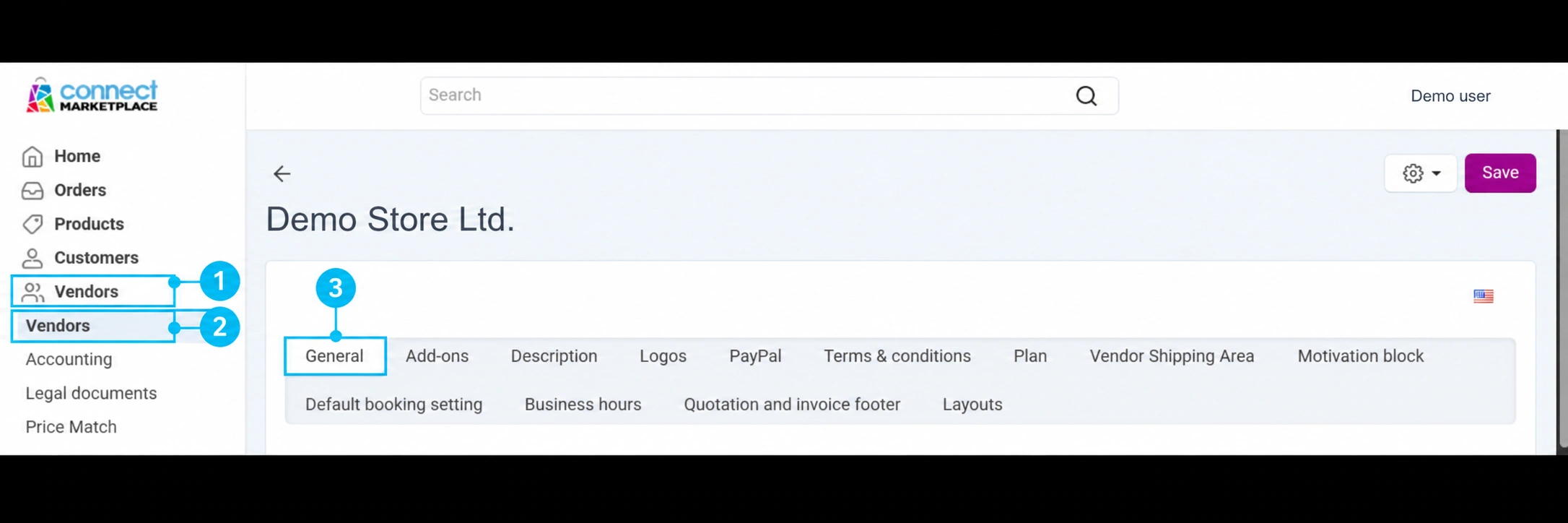
Main details: name, status, language, and tax number
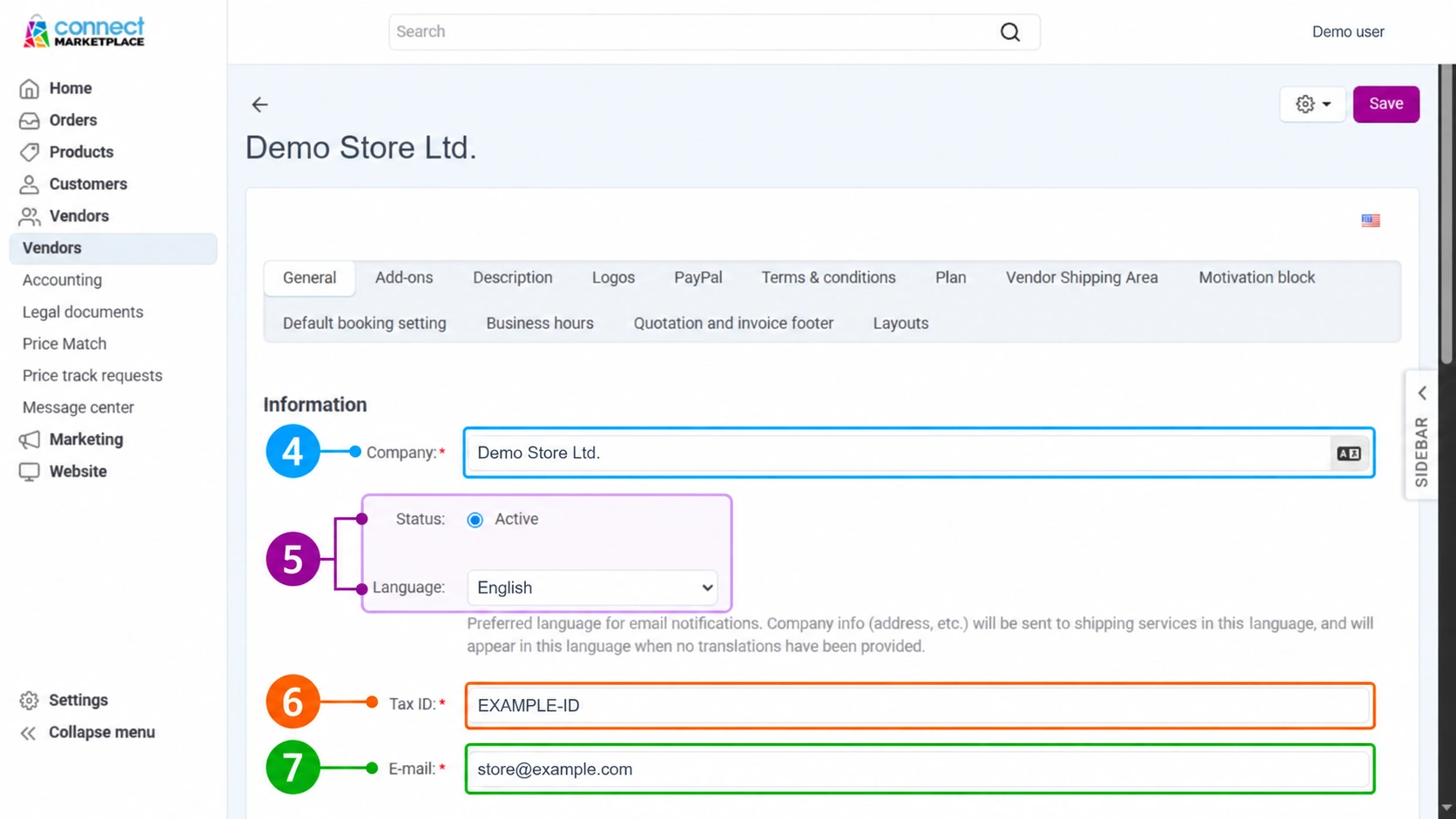
4 · Company
Enter the exact name of the business entity. Use the approved name and check the language version when a language label appears next to the field. The company name is not the same as the name of a personal user profile.
5 · Status and Language
Check the displayed status. If it is not available for editing or is not as expected, contact support. The field Language determines the preferred language for the seller's email notifications; according to the form description, it is also used for data sent to shipping services and as a fallback language when a translation of the data has not been prepared. It does not change the language of the administration interface and does not automatically translate all store content.
6 · Tax ID
Enter the business entity's actual tax identification number, or OIB for a Croatian business entity, according to the details confirmed by the responsible person. Do not copy the sample value from the screenshot.
7 · E-mail and Phone
Prepare the business email address and phone number that the responsible person monitors regularly. Check for typographical errors and the phone's international dialing code. Check the recipients of individual notifications and the public display separately after making the change.
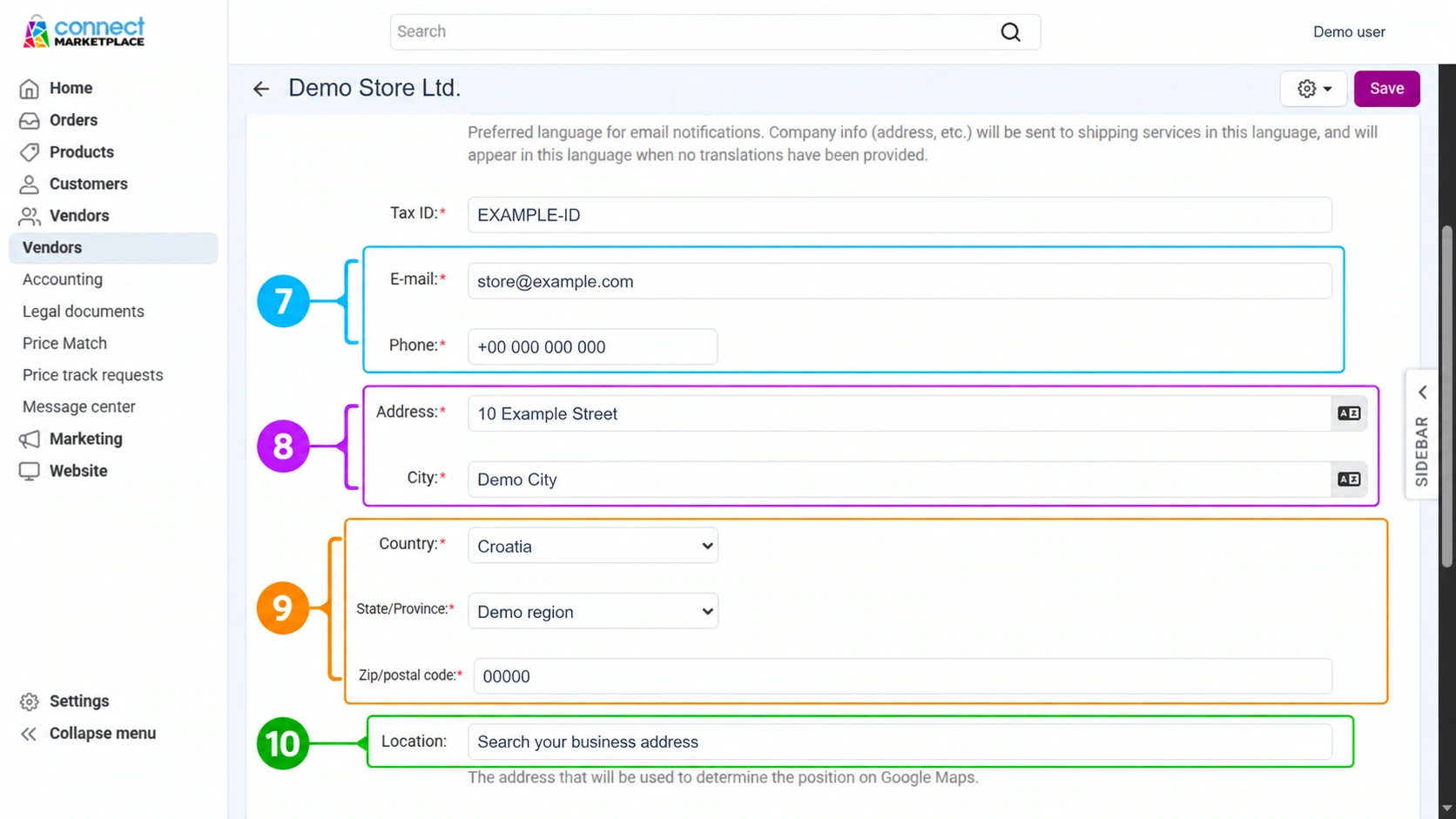
Contact, address, and location
7 · E-mail and Phone
Enter the confirmed business contact details. Changing these fields does not replace verification of the address used by an individual to log in to the administration.
8 · Address and City
Enter the business entity's address and the corresponding city. If the return address or pickup location is different, specify it separately through the relevant settings or by contacting support.
9 · Country, State/Province and Zip/postal code
Select the country and the relevant region or county, when applicable, and enter the postal code. Check that all parts form one accurate address. This selection alone does not define shipping areas.
10 · Location
The field is used to find a location on Google Maps. When using it, find the actual business address and verify the location. If additional coordinate fields are displayed, do not enter random values in them; if anything is unclear, ask the Connect team to verify them.
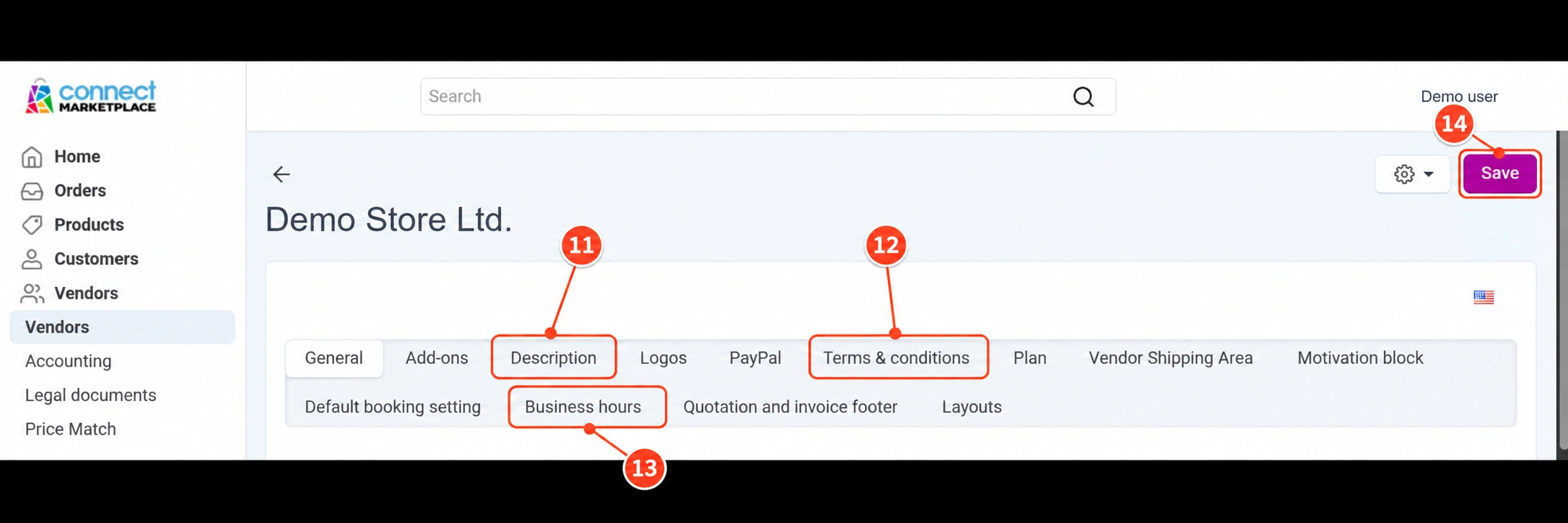
Related tabs and saving changes
11 · Description
This tab is used to describe the seller. Provide or edit the approved introductory text in the appropriate language. The business description does not replace legal texts.
12 · Terms & conditions
This tab concerns the terms of sale. Use only the final text reviewed or approved by the legal department. Prepare privacy rules, GDPR information, and other documents according to the highlighted instructions below; this tab alone does not replace the complete legal content.
13 · Business hours
There is a separate tab for business hours. Check its purpose for your store and prepare an accurate schedule; entering an address in General does not set business hours.
14 · Save
Review the entered details and the selected content language, then click Save. Follow any messages about required fields. Reopen the profile and check the saved values and the relevant public display. To verify message delivery, arrange a test without unnecessarily creating real orders.
The screenshots show a sample entry for explanatory purposes. No changes were saved on an actual seller while this guide was being created. Available tabs and editing permissions may vary by account.
01 · PREPARATION AND VERIFICATION
Which details to prepare
Prepare the exact business name, the name under which you operate for customers, address, identification details required for your business, phone number, email, and working hours. Also provide a brief description of your business activities to introduce the store.
If the registered office, return address, and pickup address differ, clearly indicate the purpose of each address. Do not automatically apply one address to all parts of the store.
REQUIRED PREPARATION · LEGAL TEXTS
Provide legal and GDPR texts approved for your business
The partner must provide final legal texts aligned with its business practices and reviewed or approved by its own legal department or legal adviser. The legal team determines the required scope and content for the markets in which you operate.
- Privacy policy and information about personal data processing in accordance with the GDPR.
- Terms of sale, purchase and business conditions.
- Cookie information and any necessary consent wording, based on the features actually used.
- Information and policies on delivery, returns, complaints and other relevant procedures.
- Approved language and market versions, including the seller details to which the texts apply.
Identify the date or version and the person who approved the texts. Connect integrates and publishes them within the agreed structure; before launch, the partner confirms their accuracy and approval. When business processes or data processing practices change, obtain a legal review and provide updated versions.
02 · PREPARATION AND VERIFICATION
Public contact and business notifications
The public contact is displayed to customers. An internal contact may be used for coordination with the Connect team, while recipients of orders and other messages may have separate settings. Determine who monitors each address.
For business processes, use mailboxes that the responsible people can access. Before replacing an email address, arrange a handover so that important messages do not remain at the address of someone who is no longer responsible for the store.
03 · PREPARATION AND VERIFICATION
How to request a change and check the result
Specify the store name, the old and new details, and where the change should be displayed: on a public page, document, or for receiving notifications. In the administration, edit only available fields whose purpose you understand.
After saving or confirming completion, check the public display. For messages, arrange an appropriate test; successfully saving a profile alone does not confirm delivery of all notifications. If you cannot see the option, contact support.
Recommended workflow
List the details according to their purpose.
Confirm the owner of each contact.
Edit the available fields or send a precise request.
Check the published details and the agreed test.
Checklist for this topic
- The seller's name and address are correct.
- The contact phone number and email are monitored regularly.
- Working hours and special locations are clearly indicated.
- The recipients of business notifications are known.
- The public display and necessary messages were checked after the change.
The administration layout and field availability depend on your account, theme, and activated services. Design and technical changes are carried out by the Connect team according to the agreed scope. If the purpose of a setting is unclear, request verification before making a change.
Frequently asked questions
Does a new profile email change the store contact?
Not necessarily. The user profile, public contact, and message recipients may be separate settings.
Why can't I edit all the details?
Availability depends on the account and permissions. Request a change through support, clearly stating the purpose of the detail.
CONTINUE WITH PREPARATION